Brand: D-Link
Category: Networking
Document Type: Installation Guide
Language: EN
Brand: D-Link
Category: Networking
Document Type: Installation Guide
Language: EN
Uploaded: Nov. 21, 2025, 6:53 p.m.
Manual Publish Date: 2013-10-01
Ensure you have the D-Link Powerline Adapters and Ethernet cables ready.
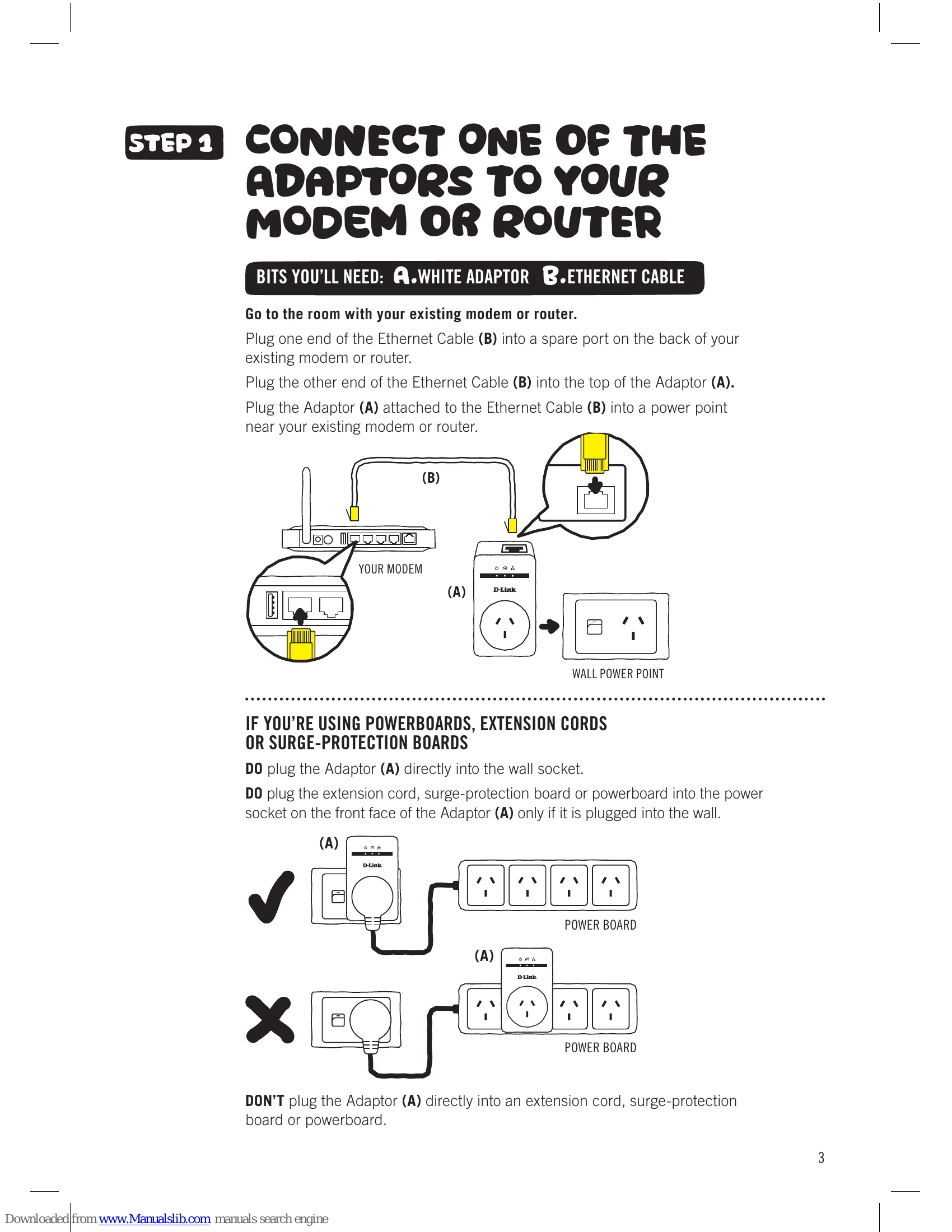
Plug one Ethernet cable into your modem/router and the other end into the Adaptor (A). Plug the Adaptor (A) into a power point.
If using powerboards: Plug Adaptor (A) directly into the wall. If using an extension cord/powerboard, plug it into the front socket of Adaptor (A).
Plug the second Ethernet cable into your Set Top Box (INTERNET port) and the other end into the second Adaptor (C). Plug Adaptor (C) into a power point near your Set Top Box.
If using powerboards: Follow the same powerboard precautions as in Step 1.
Turn on power points. Check Adaptor Power lights blink and turn solid green. Powerline light should be solid green when connected. Ethernet light on modem-connected Adaptor should be solid green.
| ISSUE | SOLUTION |
|---|---|
| No spare Ethernet port on modem/router | Unplug an existing device to free up a port. |
| Power light is off | Ensure the power socket is supplying power and Adaptors are not plugged into extension cords/powerboards. |
| Powerline LED is off | Move adapters closer. Reset both adapters to factory defaults using the simple connect button. Refer to D-Link User Guide for instructions. |
| Powerline light is amber or red | Indicates lower connection speed. Ensure Adaptors are plugged directly into wall sockets, not powerboards. Try a different power socket. |
| Ethernet light is off | Check modem/router and Set Top Box are on. Ensure Ethernet cables are working and securely plugged in. Reset both adapters to factory defaults. Refer to D-Link User Guide for instructions. |
| Change default encryption key | Refer to the full D-Link User Guide for information. |