Brand: Coolpad
Category: Mobile Phone
Document Type:
Language: EN
Brand: Coolpad
Category: Mobile Phone
Document Type:
Language: EN
Uploaded: Aug. 10, 2025, 12:09 a.m.
Manual Publish Date: 2016-01-01
The phone comes with a one-year warranty from the original manufacturer.
This section introduces your Coolpad Avail phone, guides you through setting up your service, provides an overview of the phone's screen, and helps you with basic operations.
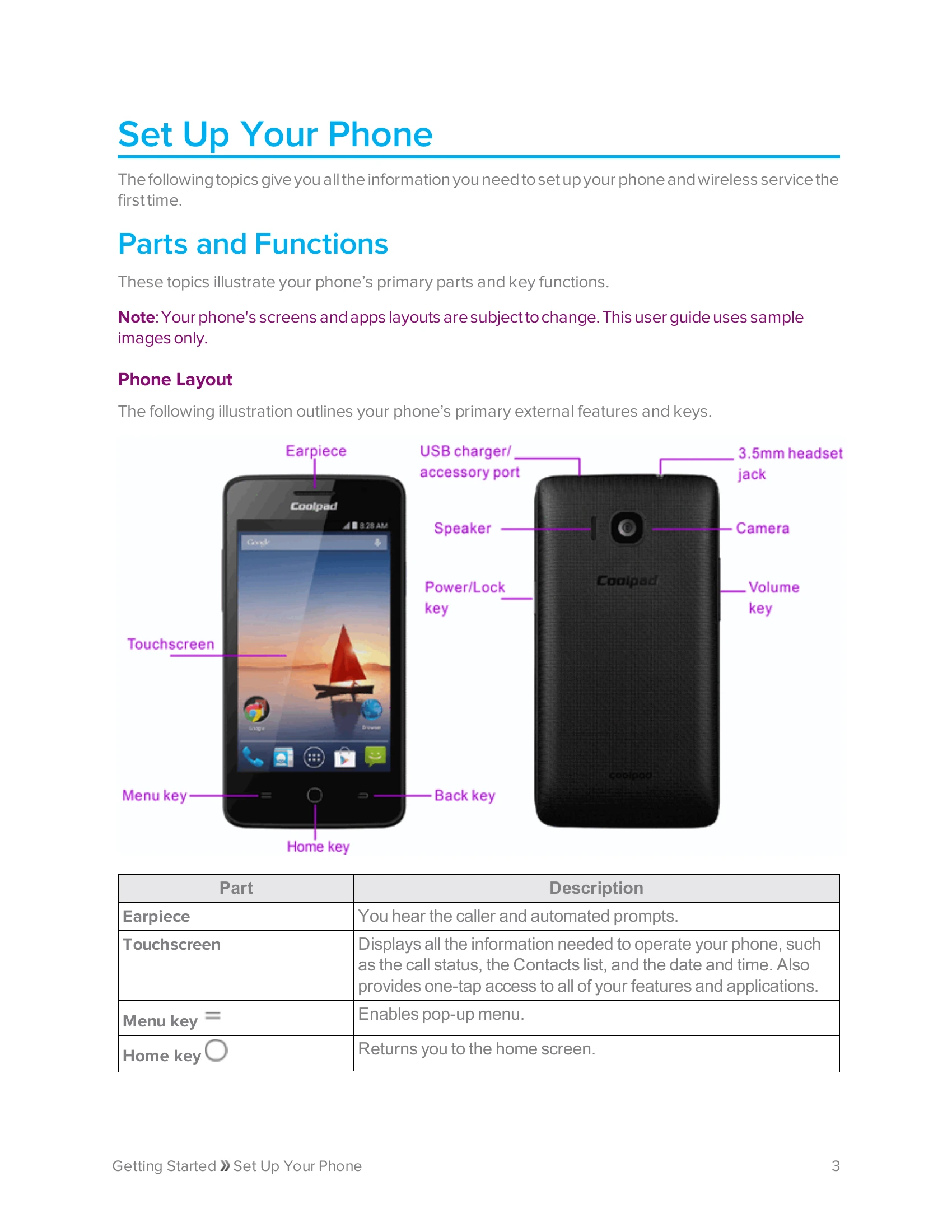
Illustrates the phone's primary parts and their functions, including the Earpiece, Touchscreen, Menu key, Home key, Back key, USB charger/accessory port, Speaker, Camera, and Volume key.
Instructions on how to insert and remove the battery, with important cautions regarding storage, bulges, replacement, and cleaning.
Details on charging the battery using either the AC adapter or a PC connection.
Information on using an optional SD card to expand storage, including how to insert, unmount, remove, and format it. Includes cautions regarding data loss and handling.
Steps for powering the phone on and off, including initial setup screens and activation.
Explains basic touch gestures like Tap, Tap and Hold, Swipe, Drag, Double-tap, and Pinch and Spread for device interaction.
Guides users through the initial setup and activation process with Assurance Wireless.
Covers access to Date and Time options, Accessibility Settings, and System Updates.
| Question | Answer |
|---|---|
| Phone freezes/operation is unstable. | Turn the phone on again. If unable to turn off, remove and replace the battery, then turn on. Data being edited will be erased. |
| Operation is unstable after a new application was installed. | Uninstall the application in Safe mode. To enter Safe mode: Press and hold Power/Lock key, tap and hold Power off, read disclaimer, tap OK. "Safe Mode" appears at the bottom left. Back up data before entering Safe mode. Widgets may be deleted. |
| Cannot use phone, mail, or Internet. | 1. Check signal strength or service area. 2. Power the phone on again. 3. Check if Airplane mode is off (Apps > Settings > Airplane mode). 4. Check if data communication is enabled (Apps > Settings > Data usage > Mobile data). |
| Battery level goes down quickly. | Check for weak signal areas or extended periods out of service area, as these consume more battery. |
| Cannot install applications. | Ensure sufficient free space on the phone or SD card. Check Storage Settings. Applications not supported by the phone cannot be installed. |
| Cannot unlock screen. | Power the phone on again. If unable to turn off, remove and replace the battery, then power on. |