Brand: CASIO
Category: Digital Camera
Document Type:
Language: EN
Brand: CASIO
Category: Digital Camera
Document Type:
Language: EN
Uploaded: Aug. 9, 2025, 11:41 p.m.
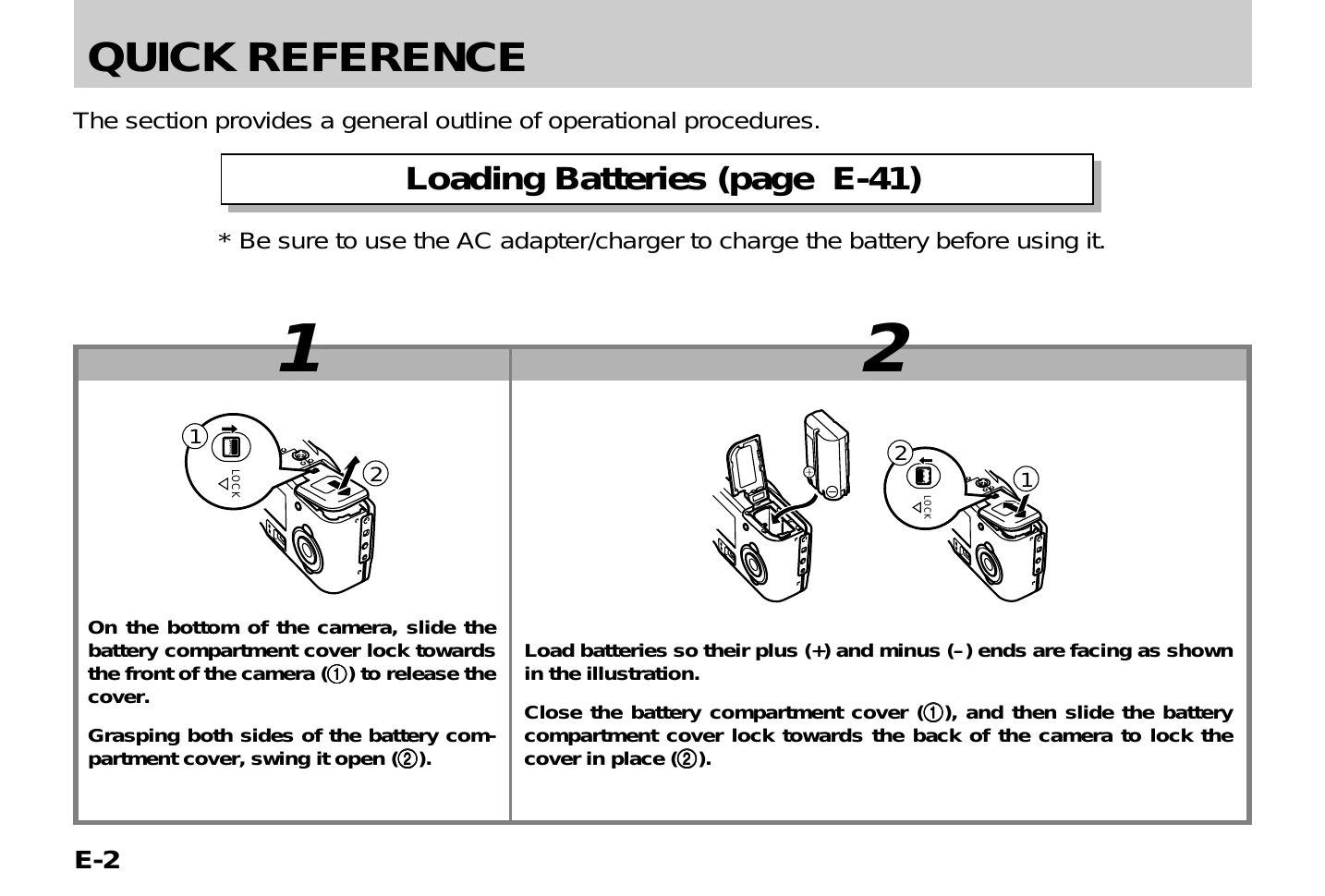
Loading Batteries: Slide the battery compartment cover lock, swing the cover open, load batteries with correct polarity, then close and lock the cover.
Loading a Memory Card: Open the memory card slot cover, insert the memory card with the arrow pointing up, and then close the slot cover.
Recording Images: Slide the power switch to REC, compose the image, press the shutter button halfway to focus, and then press it fully to capture the image.
Playing Back Images: Slide the power switch to PLAY to display recorded images. Use the navigation buttons to scroll through images.
Deleting Images: Select the image you want to delete, confirm the deletion, and then press the delete button.
| Symptom | Probable Cause | Action |
|---|---|---|
| No power | 1. Battery not loaded correctly. 2. Dead battery 3. Wrong AC adapter |
1. Correctly load a battery (page E-41). 2. Replace the battery with a new one (page E-41). 3. Use only the specified AC adapter or AC adapter/charger. |
| Sudden power failure | 1. Auto Power Off 2. Low battery power |
1. Turn power back on. 2. Replace the battery with a new one (page E-41). |
| indicator on LCD | Battery is about to go dead. | Replace the battery with a new one (page E-41). |
| No recording when shutter button is pressed | 1. The Power/Function switch is in the PLAY position. 2. Flash unit is charging. 3. The message “MEMORY FULL” is on the monitor screen. 4. Insufficient memory card capacity or no memory card loaded in camera. |
1. The Power/Function switch is in the REC position. 2. Wait until flash unit charging is finished. 3. Delete images you no longer need from camera memory. 4. Load a memory card. |
| Auto Focus cannot focus the image. | 1. Lens is dirty. 2. The object you want to focus is not in the focus frame. 3. Conditions make it impossible to obtain proper focus. 4. Camera is unsteady or shaking. |
1. Clean off the lens. 2. Aim the camera so the object you want to focus is in inside the focus frame. 3. Switch to the Manual Mode and focus manually. 4. Use a tripod to steady the camera. |
| The recorded image is out of focus. | The focus setting is not correct. | Make sure the subject you want to focus is within the Auto Focus Frame when you record the image. |
| Power failure during self-timer operation | Low battery power | Replace the battery with a new one (page E-41). |
| Monitor screen image is out of focus. | 1. Failure to focus the image while the camera is in the Manual Focus Mode. 2. Attempting to record scenery or portraits in the Macro Mode. 3. Attempting to use the Auto Focus while the subject is within 50cm of the camera. |
1. Focus the image before recording it. 2. Use the Program AE Mode (P Mode) for scenery and group shots. 3. Use the Macro Mode for close ups. |
| Poor color and brightness when indoors | Indoor fluorescent lighting | Shoot under incandescent or other non-fluorescent lighting (page E-53). |
| Cannot perform movie recording. | 1. Movie Record Mode is not selected. 2. Insufficient camera memory capacity. |
1. Select the Movie Record Mode (page E-66). 2. Delete images you no longer need from camera memory. |
| Recorded image is not saved. | 1. Loss of power before image is stored in memory 2. Memory card cover was opened before the image was fully saved. |
1. Replace the battery with a new one (page E-41). 2. Never open the memory card cover until the image is fully saved. |
| Colors of recorded image are different from those on the display when image was composed. | 1. Reflection from sunlight or light from another source 2. Image quality setting |
1. Reorient the camera so that light is not shining directly into lens. 2. Use the REC Menu to change to a higher image quality for recording. |
| No ]/[- button operation during nine-page display | Button operation during page change | Wait until an image is on the monitor screen before performing a button operation. |
| Cannot find an image. | Memory card images recording using a camera that does not support DCF. | The file management systems of cameras that do not support DCF are different from the one used by this camera. This camera cannot read cards recorded with such cameras. |
| Camera is connected to a TV, but LCD monitor contents do not appear on TV screen. | 1. Incorrect camera-TV connection 2. Wrong TV set up 3. Wrong video mode is selected. |
1. Connect correctly using the video cable (page E-104). 2. Set up the TV correctly. 3. Change the video mode. |
| Images cannot be displayed when downloaded back to the camera from a computer. | The images were on a memory card when they were opened on the computer for editing and then resaved back to the memory card. | Use the Photo Loader application to download edited images back to the camera. |
| Delete operation does not operate. | All images are protected. | Unprotect the images you want to delete (page E-94). |
| Cannot select items in the PLAY Menu. | Some functions are not available for playback of certain types of images. | Select a different function or change to the REC Mode. |
| No buttons or switches operate. | • Malfunction due to static electrical charge or strong impact. • Camera is connected to a computer. |
Remove batteries and disconnect the AC adapter if you are using one. Restore power and turn the camera on. If this does not work, contact your dealer or an authorized CASIO service provider. |
| Nothing appears on the monitor screen. | 1. The camera is in the Sleep state. 2. Communication over the USB cable is in progress. |
1. Exit the Sleep state. 2. After the communication operation over the USB cable is complete unplug the USB cable from the camera. |