Brand: CASIO
Category: Digital Camera
Document Type:
Language: EN
Brand: CASIO
Category: Digital Camera
Document Type:
Language: EN
Uploaded: Aug. 9, 2025, 11:39 p.m.
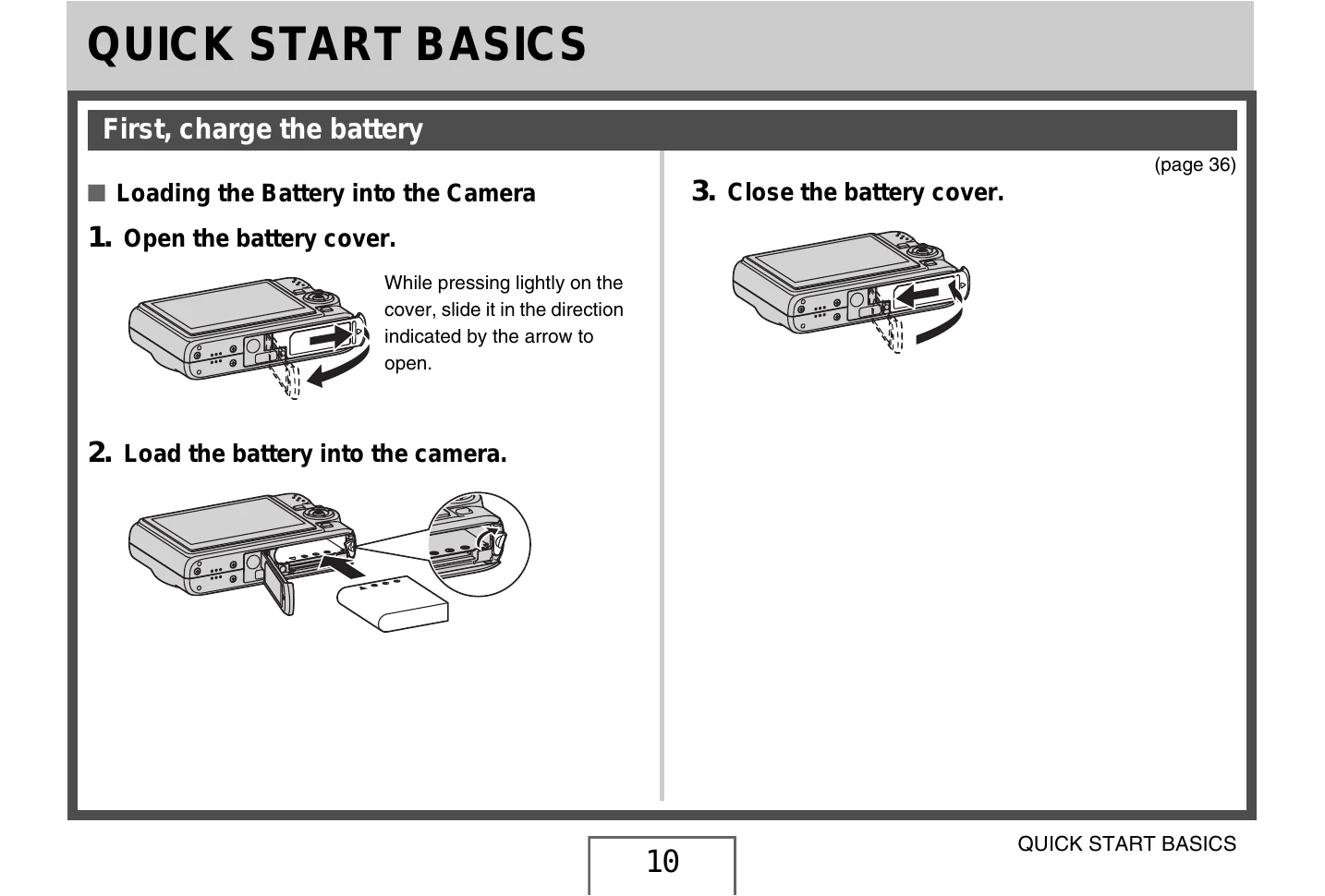
1. Open the battery cover by sliding it.
2. Load the battery into the camera.
3. Close the battery cover.
Alternatively, use the USB cradle to charge:
1. Plug the USB cradle into a power outlet.
2. Place the camera onto the USB cradle. The CHARGE lamp indicates charging status (Red: Charging, Green: Charged).
1. Turn on the camera.
2. Select language, area, city, and summer time settings using the directional buttons and press SET.
3. Select date format and set date/time using directional buttons and press SET.
4. Press ON/OFF to turn off the camera.
1. Open the battery cover.
2. Load the memory card with the front facing up until it clicks.
3. Close the battery cover.
4. Format the memory card if necessary by accessing the Set Up menu.
1. Press [O] to turn on the camera (REC mode).
2. Point the camera at the subject.
3. Half-press the shutter button to focus and adjust exposure.
4. Fully press the shutter button to take the picture.
1. Press [] to enter PLAY mode.
2. Use [] and [] to scroll through images.
3. Press [O] to return to REC mode.
1. Press [] to enter REC mode.
2. Press [BS] (BEST SHOT) and select the movie scene.
3. Press the shutter button to start recording (audio is also recorded).
4. Press the shutter button again to stop recording.
1. Press [] to enter PLAY mode.
2. Use [] and [] to select the movie.
3. Press [SET] to start playback.
| Problem | Possible Causes | Action |
|---|---|---|
| Digital zoom (including Instant Zoom) does not work. The zoom bar indicates zoom only up to a zoom factor of 3.0. | 1) The digital zoom setting is turned off. 2) Date stamping is turned on. |
1) Turn on the digital zoom setting (page 74). 2) Turn off date stamping (page 128). Digital zoom is disabled while date stamping is turned on. |
| There is a vertical line on the monitor screen | Shooting a very brightly lit subject can cause a vertical band to appear in the monitor screen image. | This is a CCD phenomenon known as “vertical smear”, and does not indicate malfunction of the camera. Note that vertical smear is not recorded with the image in the case of a snapshot, but it is recorded in the case of a movie. |
| Images are out of focus. | The subject is outside the range of the camera. | Shoot within the allowable range. |
| There is digital noise in images. | Sensitivity is increased automatically for dark subjects, which increases the chance of digital noise. | Use a light or some other means to illuminate the subject. |
| The color of the playback image is different from what appears on the monitor screen when shooting. | Sunlight or light from another source is shining directly into the lens when shooting. | Position the camera so sunlight does not shine directly into the lens. |
| Images are not displayed. | A memory card with non-DCF images recorded with another camera is loaded in the camera. | This camera cannot display non-DCF images. |
| All buttons and switches are disabled. | Circuit problem caused by electrostatic charge, impact, etc. while the camera was connected to another device. | Remove the battery from the camera, reinsert it, and then try again. |
| The camera's monitor screen is blank. | USB communication is in progress. | After confirming that the computer is not accessing the memory card, disconnect the USB cable. |
| I can't transfer images over a USB connection. | 1) The camera is not set securely on the USB cradle. 2) The USB cable is not connected securely. 3) The USB driver is not installed. 4) The camera is turned off. |
1) Check the connection between the camera and USB cradle. 2) Check all connections. 3) Install the USB driver (page 210). 4) Press the USB cradle's [USB] button. |
| Display language setting screen appears when the camera is turned on. | 1) Camera's display language, Home city, date style, date and time, and other settings have not been configured. 2) A problem with the camera's built-in memory management area. |
1) Check the settings (pages 12, 188). 2) Perform the reset operation to initialize the camera's setup (page 136). After that, configure each setting. If the language selection screen does not re-appear when you turn the camera on, it means that the camera's built-in memory management area has been restored. If the same message appears after you turn power back on, contact your retailer or a CASIO service center. |