Manual for VB-C60

Manual for VB-C60

Brand: CANON

Category: Camera

Document Type: Manual

Language: EN
Uploaded: Sept. 12, 2025, 4:25 a.m.

Manual Publish Date: 2009

How to Read This Document

This document is the Operation Guide for the Canon VB-C60 Network Camera. It details setup, usage, and troubleshooting.

Key Sections:

  • Introduction: Product overview, copyright, notes on privacy and trademarks.
  • How to Read This Document: Explains manual structure, icons, and other related documents.
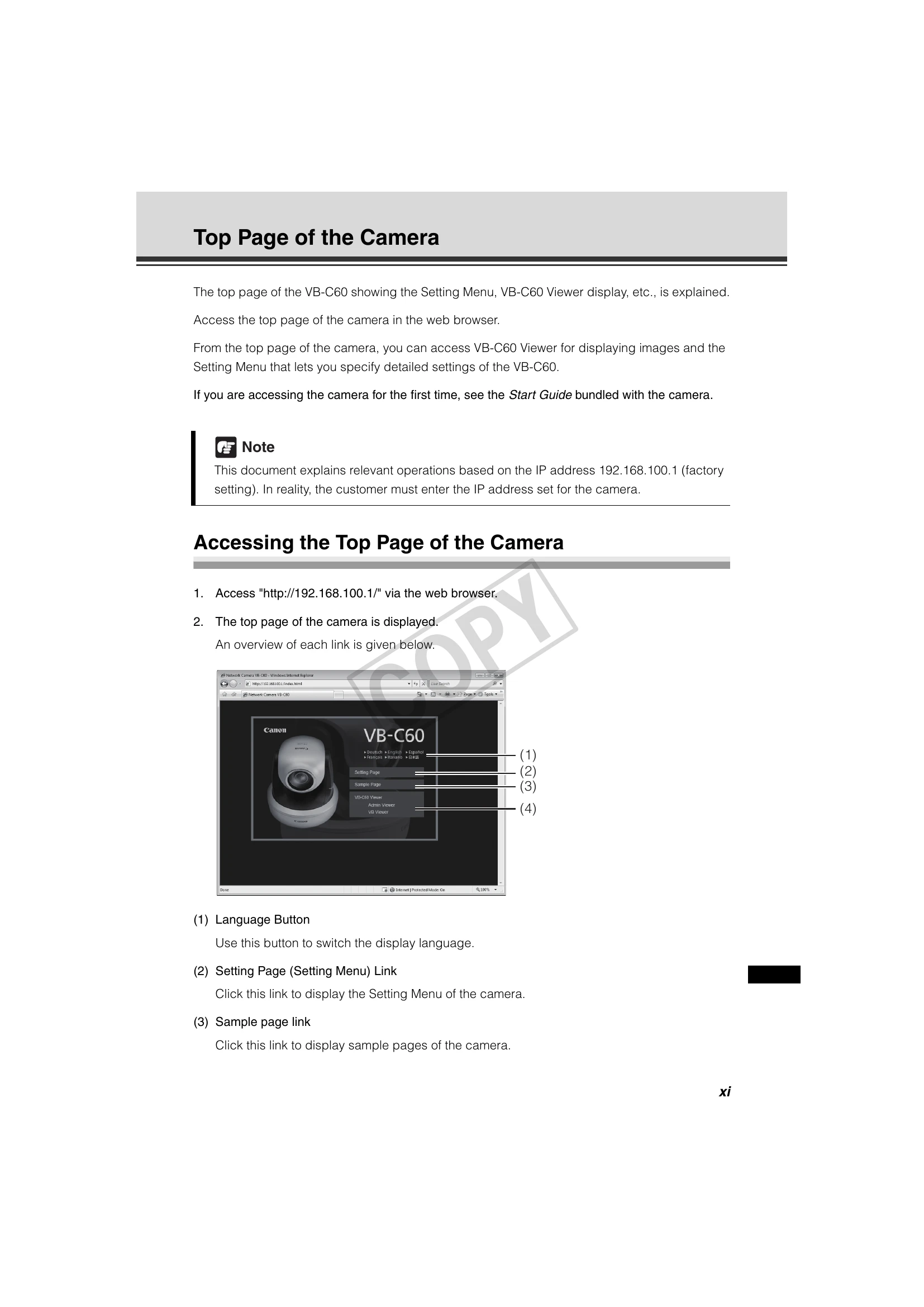
  • Top Page of the Camera: How to access and navigate the camera's web interface, including the Setting Menu and VB-C60 Viewer.
  • Chapter 1 Detailed Settings: In-depth configuration options for network, date/time, camera, video, upload, server, event, access control, IPsec, rebooting, and maintenance.
  • Chapter 2 VBAdmin Tools: Tools for managing the camera, including Panorama Creation, View Restriction, Preset Setting, Motion Detection, and Log Viewer.
  • Chapter 3 VB-C60 Viewer: Using the viewer for live video display and control.
  • Chapter 4 Creating Web Pages for Video Distribution: Setting up web pages for image distribution.
  • Chapter 5 Appendix: Modifiers, troubleshooting, log messages, and factory settings.

Icons Used:

  • Caution: May result in property damage.
  • Note: Important or prohibited items.
  • Tip: Supplementary information or references.

Accessing the Camera:

Access the camera's top page via web browser at its IP address (default: 192.168.100.1). User authentication (user name: root, password: VB-C60) is required for the Setting Menu and Admin Viewer.

Key Features:

  • Network camera with PTZ (Pan-Tilt-Zoom) capabilities.
  • Web-based interface for configuration and monitoring.
  • Supports video streaming (JPEG/MPEG-4).
  • Includes management tools like VBAdmin Tools and VB-C60 Viewer.

Important Notes:

  • Change the default administrator password for security.
  • Read the Start Guide for initial setup and safety precautions.

Troubleshooting and error codes

Item Possible Cause Solution
Camera does not respond to commands. Network cable is loose. Check the network cable connection.
Camera is not powered on. Check the power supply.
Incorrect IP address or network settings. Verify IP address and network configuration.
Video is not displayed. Web browser is not compatible. Use a compatible web browser.
Network connection issue. Check network connectivity.
Camera is not set to transmit video. Check video settings in the Setting Menu.
Cannot access the Setting Menu. User authentication failed. Enter the correct user name and password.
Incorrect IP address. Verify the camera's IP address.
Privacy Policy