Getting to know MyPal
Front features
- Bluetooth LED
- Power LED
- LCD touch screen
- ASUS Launcher button
- Calendar button
- Microphone
- Launch button
- Tasks button
- Contacts button
- 4-way Navigation button
Back features
- Camera lens
- Camera flash
- Speaker
- Removable back cover
Side features
- Left side: Power button/Backlight button, Camera button
- Right side: Back cover latch
Top features
- Headphone jack
- CF card slot
- Infrared (IR) port
- SD card slot
Bottom features
- Reset switch
- Cradle connector / Sync cable connector
- Stylus
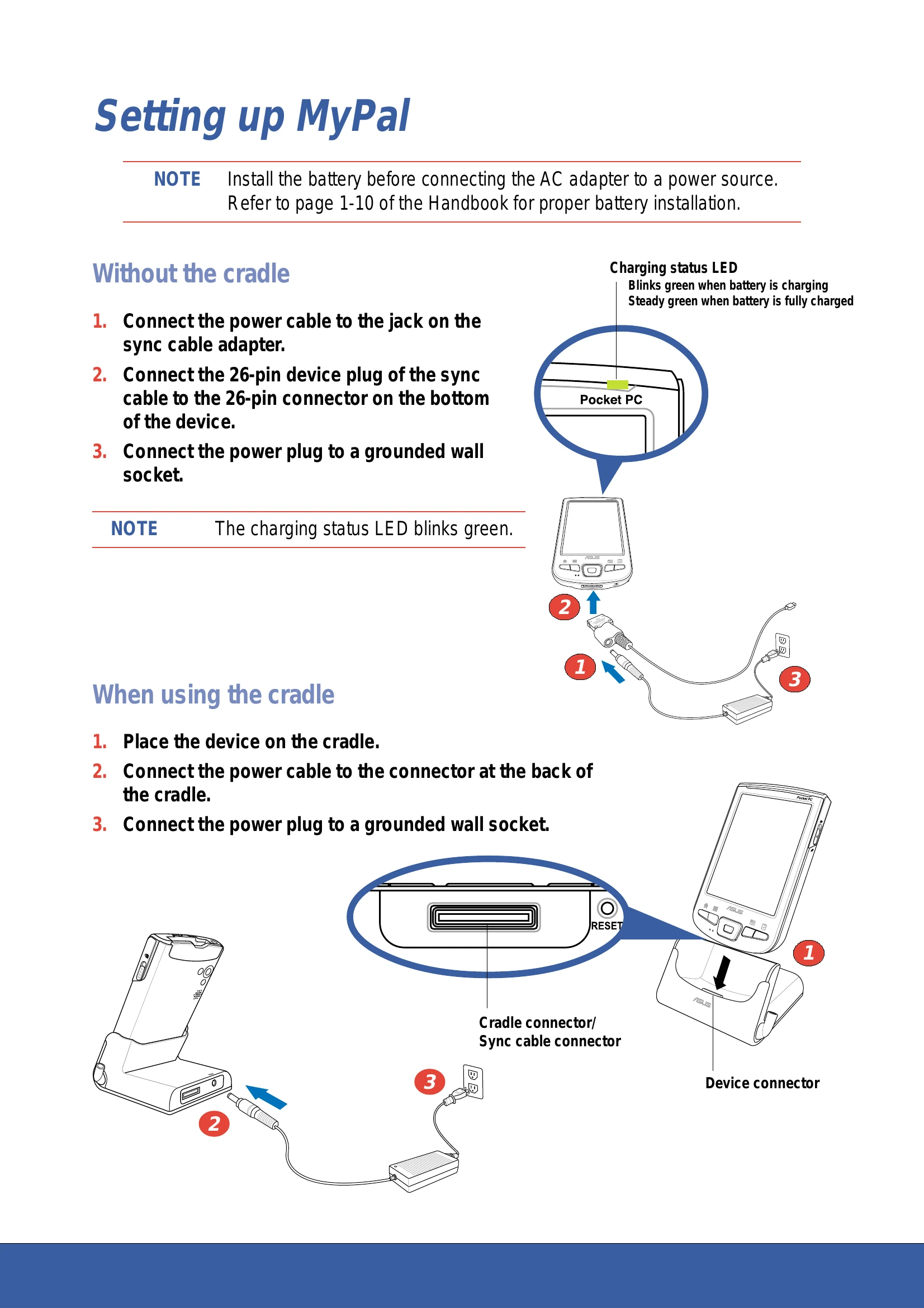
Setting up MyPal
Without the cradle
- Connect the power cable to the jack on the sync cable adapter.
- Connect the 26-pin device plug of the sync cable to the 26-pin connector on the bottom of the device.
- Connect the power plug to a grounded wall socket.
When using the cradle
- Place the device on the cradle.
- Connect the power cable to the connector at the back of the cradle.
- Connect the power plug to a grounded wall socket.
Synchronizing MyPal
Without the cradle
- Connect the flat plug of the USB sync cable to the connector on the bottom of the device.
- Connect the USB plug to a USB port on your computer.
When using the cradle
- Place the device on the cradle.
- Connect the flat plug of the USB sync cable to the connector at the back of the cradle.
- Connect the USB plug to a USB port on your computer.
Upon connection, your device is automatically synchronized with your computer.
Pocket PC Software
Today screen
The Today screen appears when you turn on your device. The Today screen gives you a summary of the important information for the day. Tap any of the listed items with the stylus to display the details.
Start menu
From the Start menu, you can select programs, settings, and Help topics. To display the Start menu, tap the Start icon from the top of the screen.
MyPal basics
Use any one of the following ways to enter information on your device:
- Typing
- Writing
- Drawing
- Recording