Brand: Argus
Category: Digital Camera
Document Type:
Language: EN
Brand: Argus
Category: Digital Camera
Document Type:
Language: EN
Uploaded: Aug. 9, 2025, 11:34 p.m.
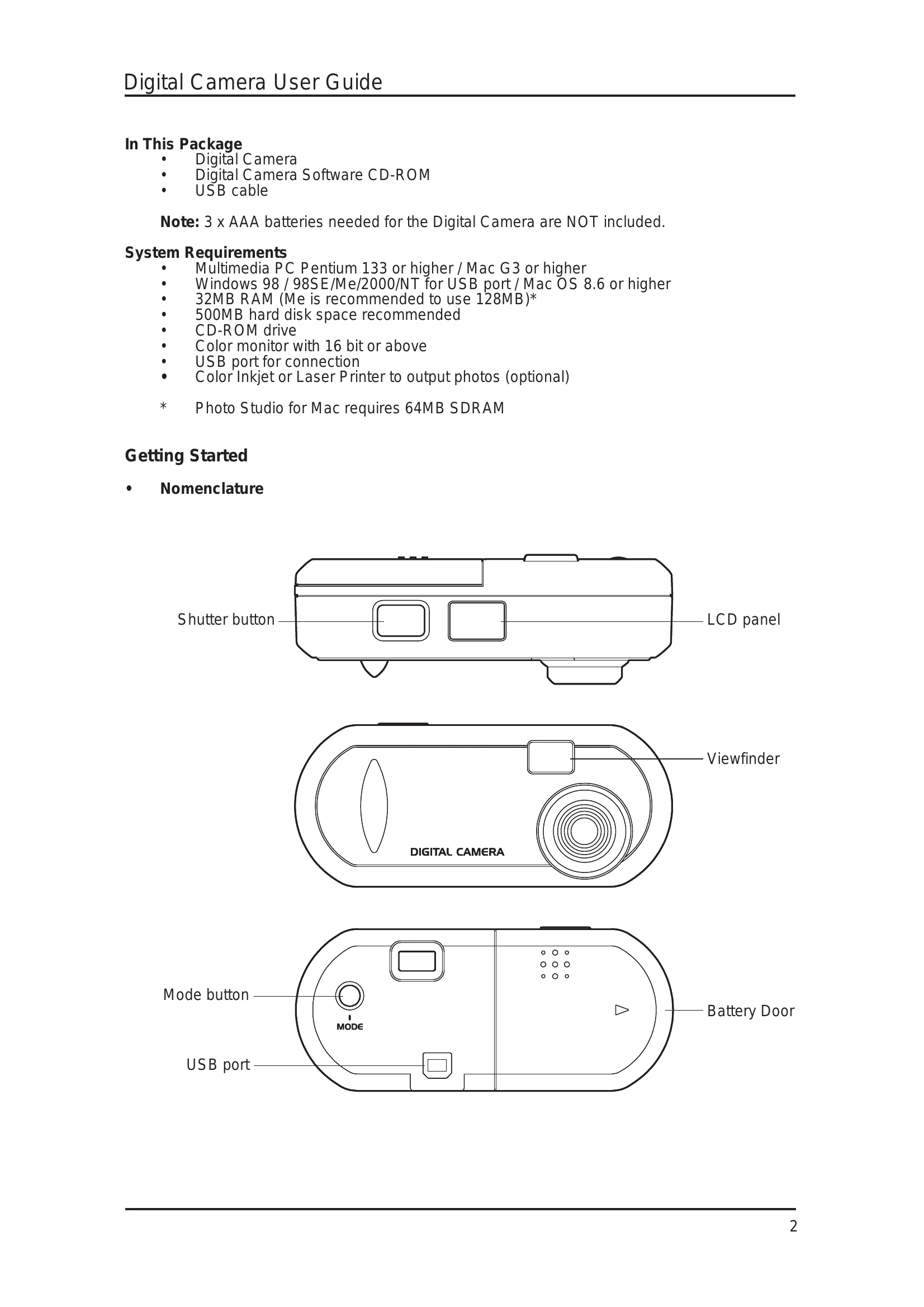
Getting Started:
Taking Photos:
Software Usage:
| Problem | Solution |
| Photos are lost when power is turned off. | Ensure photos are uploaded to PC before turning off the camera without USB power. |
| PC does not recognize camera after disconnecting USB during operation. | Close and reopen the Acquire dialog panel. |
| Black strips appear in photos taken under indoor lighting in some countries. | Avoid indoor lighting if the country's AC mains frequency differs from the camera's setting. Sunlight is unaffected. |
| Camera turns off automatically after 30 seconds. | This is a power-saving feature. Press the 'Mode' button to power on. Battery removal is only needed for extended storage. |
| LCD is blinking. | Low battery. Upload photos and replace batteries. You can still take a limited number of photos. |
| Not recommended to use rechargeable batteries. | Alkaline batteries provide longer life and better performance due to higher output voltage. |
| PC does not recognize camera when running Photo program. | Disconnect and reconnect the USB cord. |
| Camera makes a 'Gi' sound and won't take photos in dark or overly bright environments. | Ensure adequate lighting. Use spotlight or fluorescent lamp if needed. |
| Cannot take photos immediately after power on. | The camera takes about 2 seconds to initialize. Wait for the picture count to appear. |
| Poor photo quality at home. | Take photos with sufficient light intensity, preferably outdoors or in sunlight. Avoid indoor use at night. |
| Object is too dark in photos. | Adjust background light intensity. Position yourself so object and background have similar light. Avoid shadows outdoors. |
| Fuzzy or ghost images. | Hold the camera steady with both hands, use the correct finger placement for the shutter, and avoid movement while shooting. |
| Lens issues (obstruction, grease). | Do not cover the lens with fingers. Clean with a dry, soft cloth if greasy. |
| Color changes indoors. | Use daylight or fluorescent lamps for better color. Adjust gamma in PhotoStudio if needed. |
| Cannot take photos at a short distance. | Maintain a minimum distance of 0.3m (1 feet) to avoid out-of-focus images. |
| Black dots or overly bright photos. | Wait several seconds between shots in environments with varying light levels to ensure correct exposure. |
| Image too bright on monitor. | Adjust monitor gamma using PhotoStudio (View -> Monitor Gamma), lowering RGB gamma rate if necessary. |
| Bent spring contacts in battery door. | Close the battery door gently. |
| Unit malfunctions after child tampering. | Avoid dropping the camera on hard surfaces or submerging it in water. |
| Cannot take photo (environment too dark/bright). | Operates normally in good light. 'Gi' sound indicates poor lighting. |
| Unit locked up, shows '20' or '26' on LCD. | Replace old batteries. If problem persists, open and close battery door. |
| Cannot use camera with Win95 and RS232 port. | Disable other RS232 devices or add an RS232 card to free up ports. |
| Cannot install driver on Gateway PC. | Gateway PCs may have unique installation processes and hidden files. |
| Unit is off but power switch is on. Cannot take photo. | Press the Mode button to wake the unit from standby mode. |
| Mode button selection has no action. | Press the shutter button to confirm mode selection. Mode reverts if no action is taken for 5 seconds. |
| Unit not turning on after inserting batteries. | Check battery insertion direction, ensure power switch is on, and that front LED indicator is lit. Avoid dropping or water exposure. |
| Can use as a PC camera (webcam)? | Yes, using USB port (Win95 users are not valid). |
| How many images can be taken? | CIF models: 20 CIF or 80 QCIF images. VGA models: 26 VGA or 107 QVGA images. |