Brand: ALCATEL
Category: Mobile Phone
Document Type:
Language: EN
Brand: ALCATEL
Category: Mobile Phone
Document Type:
Language: EN
Uploaded: Aug. 10, 2025, 12:02 a.m.
The phone is warranted against defects for twelve months from the date of purchase.
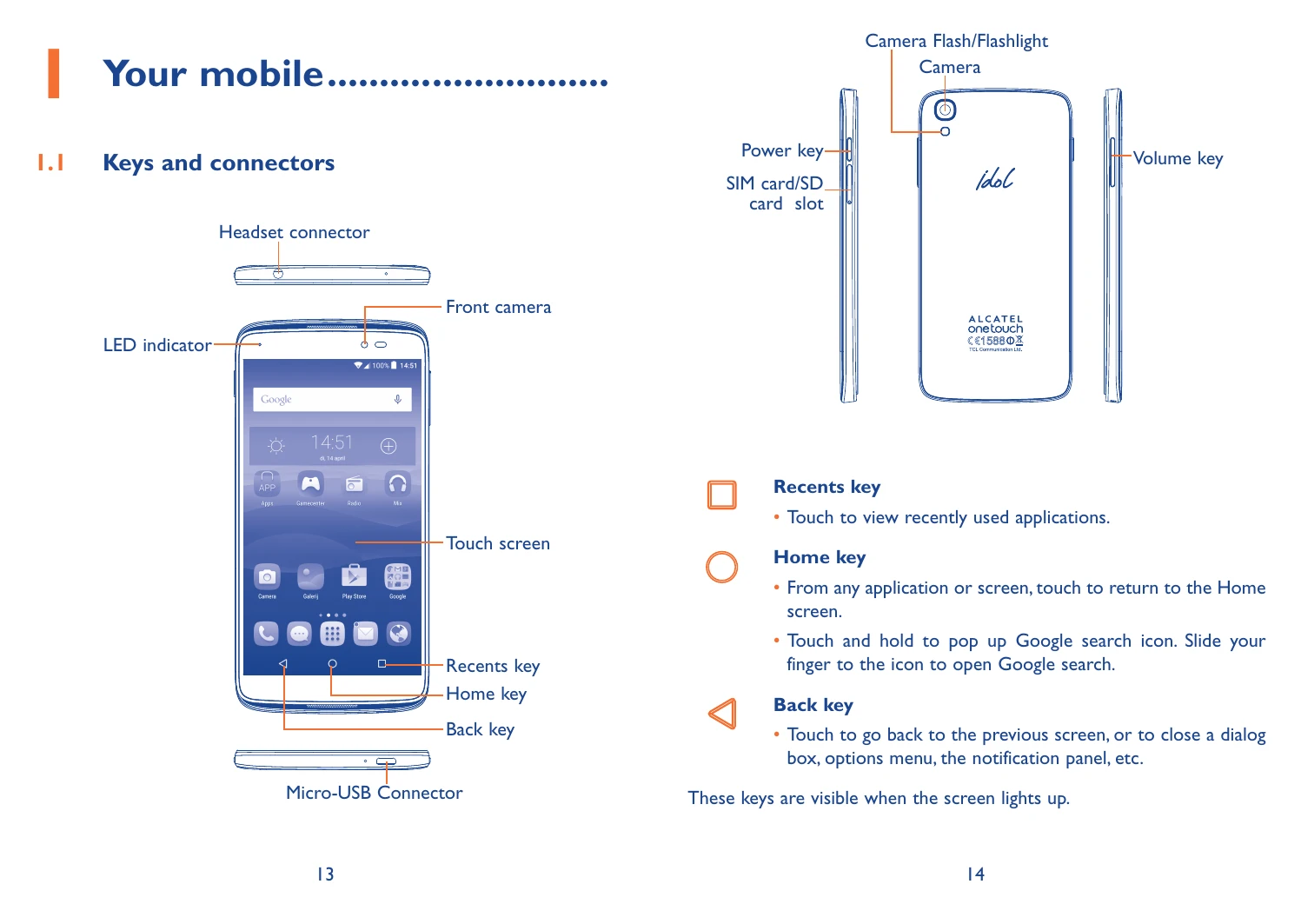
Powering On/Off: Press and hold the Power key. The phone will guide you through initial setup, including language, Wi-Fi, and Google account configuration.
Home Screen: Access applications, shortcuts, and widgets. Swipe left/right to view more screens. Use touch gestures like touch, touch and hold, drag, slide/swipe, pinch/spread, and rotate for navigation.
Status Bar: Displays notifications and phone status. Drag down to access the notification panel or quick settings.
Calls: Use the Call icon to dial numbers or select contacts. Hang up by touching the phone icon. International calls require the country prefix. Emergency calls can be made without a SIM card.
Text Input: Use the onscreen keyboard for typing. Adjust orientation and settings as needed. Text editing options include select all, cut, copy, and paste.
Contacts: View, create, edit, and organize contacts. Import/export contacts and manage synchronization with accounts like Google.
| Problem | Solution |
|---|---|
| Phone cannot be switched on or is frozen | Charge for at least 20 minutes. Press and hold Volume Down to enter Safe Mode. If ineffective, reset using Power and Volume Up keys. |
| Phone has not responded for several minutes | Restart by pressing and holding the Power key for more than 9 seconds. |
| Phone turns off by itself | Check screen lock status and Power key contact. Check battery charge level. |
| Phone cannot charge properly | Use the original charger. Ensure battery is not fully discharged. Charge under normal conditions (0°C to +40°C). Check voltage input when abroad. |
| Phone cannot connect to a network or “No service” | Try another location. Verify network coverage and SIM card validity. Select networks manually. Try later if network is overloaded. |
| Phone cannot connect to the Internet | Check IMEI. Ensure SIM card has internet service. Verify phone's internet settings. Ensure network coverage. Try connecting later or at another location. |
| Invalid SIM card | Ensure SIM card is correctly inserted, not damaged, and has service. |
| Unable to make outgoing calls | Dial a valid number. Check country/area codes for international calls. Ensure connection to a network that is not overloaded. Check subscription status and ensure calls are not barred or in flight mode. |
| Unable to receive incoming calls | Ensure phone is on and connected to a network. Check subscription status. Ensure incoming calls are not forwarded or barred, and phone is not in flight mode. |
| Caller's name/number does not appear | Check if the service is subscribed with the operator. Caller may have concealed their information. |
| Cannot find my contacts | Ensure SIM card is not broken or improperly inserted. Import SIM contacts to phone. |
| Poor sound quality during calls | Adjust volume. Check network strength. Ensure receiver, connector, and speaker are clean. |
| Unable to use features described in manual | Check with operator for service subscription. Ensure feature does not require a specific accessory. |
| Number from contacts cannot be dialed | Ensure the number is correctly recorded in the contact file. |
| Cannot add a contact | Ensure SIM contacts are not full; delete files or save to phone contacts. |
| Callers unable to leave messages on voicemail | Contact network operator for service availability. |
| Cannot access voicemail | Ensure voicemail number is correctly entered. Try later if the network is busy. |
| Unable to send/receive MMS | Check phone memory. Contact operator for service availability and MMS parameters. Verify server centre number/MMS profile. Try again if server is busy. |
| SIM card PIN locked | Contact network operator for PUK code. |
| Unable to connect phone to computer | Install Smart Suite. Check USB driver installation. Ensure computer meets Smart Suite requirements. Use the correct cable. |
| Unable to download new files | Ensure sufficient phone memory. Select microSD card for storage. Check subscription status. |
| Phone cannot be detected by Bluetooth | Ensure Bluetooth is on and phone is visible. Ensure phones are within Bluetooth detection range. |
| Battery lasting longer | Follow complete charge time (min 3 hours). Wait 20 mins after partial charge for exact indication. Adjust brightness. Extend email auto-check intervals. Update weather/news manually. Exit background apps. Deactivate Bluetooth, Wi-Fi, GPS when not in use. |
| Phone becomes warm | Normal for prolonged calls, gaming, internet, or complex apps due to CPU handling. Will return to normal temperatures when actions stop. |