Manual for s271hl

Manual for s271hl

Brand: acer

Category: LCD Monitor

Document Type: Manual

Language: EN
Uploaded: Nov. 21, 2025, 6:35 p.m.

Manual Publish Date: 2011-10-13

Warranty Information

Refer to the Declaration of Conformity for compliance details.

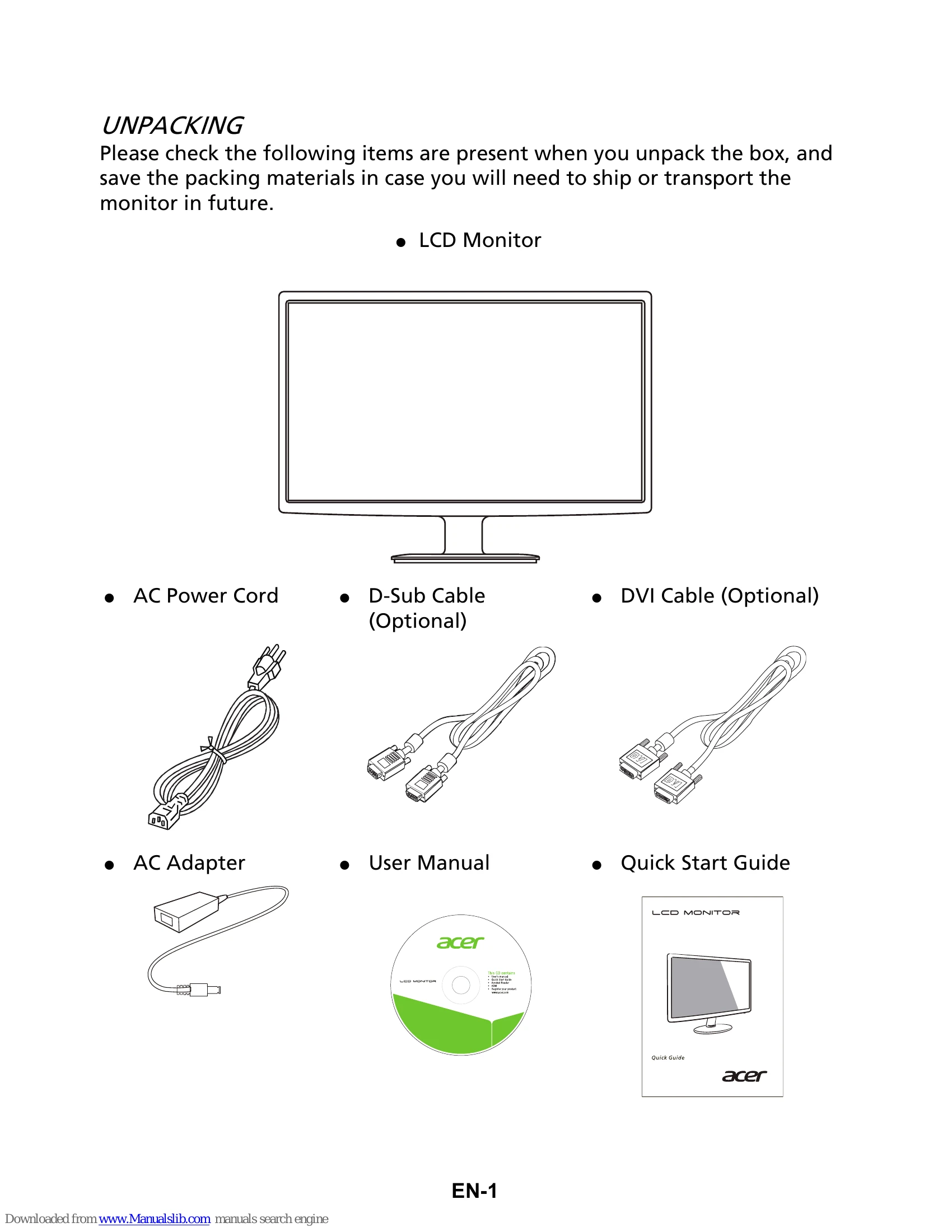
Unpacking

Check the box contents against the list provided.

Attaching/Removing the Base

Follow the illustrated steps to attach or remove the monitor base.

Screen Position Adjustment

Adjust the tilt of the monitor by holding the edges and moving it up or down.

Connecting the Power Cord

Ensure the correct power cord is used, plug into the adapter, and then into an AC outlet.

Safety Precautions

Follow guidelines to avoid damage and ensure safe operation, including proper ventilation and handling.

Cleaning Your Monitor

Unplug the monitor before cleaning with a soft cloth.

Power Saving

The monitor enters power saving mode with an amber LED, indicated by control signals or inactivity.

DDC

The monitor supports Plug and Play via DDC protocol for easier installation.

Connector Pin Assignment

Provides pin assignments for 15-pin, 24-pin, and 19-pin display signal cables.

Standard Timing Table

Lists various display modes, resolutions, and refresh rates.

Installation

Connect video cables (VGA, DVI, or HDMI) and the adapter, then power on the monitor and computer in sequence.

User Controls

Explains the function of the power switch, OSD controls (Minus/Plus, MENU, AUTO), and the Empowering Key.

Acer eColor Management

Details how to access and use various display modes (User, ECO, Standard, Graphic, Movie) for optimized viewing.

Adjusting OSD Settings

Guides on adjusting picture quality, OSD position, and general settings via the On-Screen Display menu.

Product Information

Displays monitor resolution, refresh rate, input source, and serial number.

Troubleshooting

Provides solutions for common problems like 'No Picture' and 'Abnormal Picture' for VGA and DVI/HDMI modes.

Troubleshooting and error codes

Problems Current Status Remedy
No Picture LED ON Using OSD, adjust brightness and contrast to maximum or reset to their default settings.
LED OFF Check the power switch. Check if AC power cord is properly connected to the monitor.
LED displays amber color Check if video signal cable is properly connected at the back of monitor. Check if the power of computer system is ON.
(DVI/HDMI Mode) No Picture LED ON
LED OFF Check the power switch. Check if AC power cord is properly connected to the monitor.
Abnormal Picture Unstable Picture Check if the specification of graphics adapter and monitor is in compliance which may be causing the input signal frequency mismatch.
Using OSD, adjust RESOLUTION, CLOCK, CLOCK-PHASE, H-POSITION and V-POSITION with non-standard signals. Using OSD, in case of missing full-screen image, please select other resolution or other vertical refresh timing. Wait for a few seconds after adjusting the size of the image before changing or disconnecting the signal cable or powering OFF the monitor.
Privacy Policy