Turning your computer on and off: Use the Windows shutdown command (Windows key + C, then Settings > Power > Shut Down). To power down briefly, use Hibernate by pressing the power button. If the computer won't power off normally, press and hold the power button for more than four seconds. Wait at least two seconds before powering up again.
Taking care of your computer: Avoid direct sunlight, extreme temperatures (below 0°C/32°F or above 50°C/122°F), magnetic fields, rain or moisture, heavy shock or vibration, dust, and dirt. Do not place objects on top of the computer or slam the display shut. Avoid uneven surfaces.
Taking care of your AC adapter: Do not connect to other devices. Do not step on the power cord or place heavy objects on it. Route cords away from foot traffic. When unplugging, pull the plug, not the cord. Ensure total ampere ratings do not exceed cord or wall outlet ratings.
Cleaning and servicing: Turn off the computer and disconnect the AC adapter. Use a soft, moist cloth. Do not use liquid or aerosol cleaners.
Your Acer tablet PC tour
Tablet PC - Top view: Features Volume keys and a MicroSD card slot. LED Indicators: Blue (steady) means fully charged, Amber (steady) means charging.
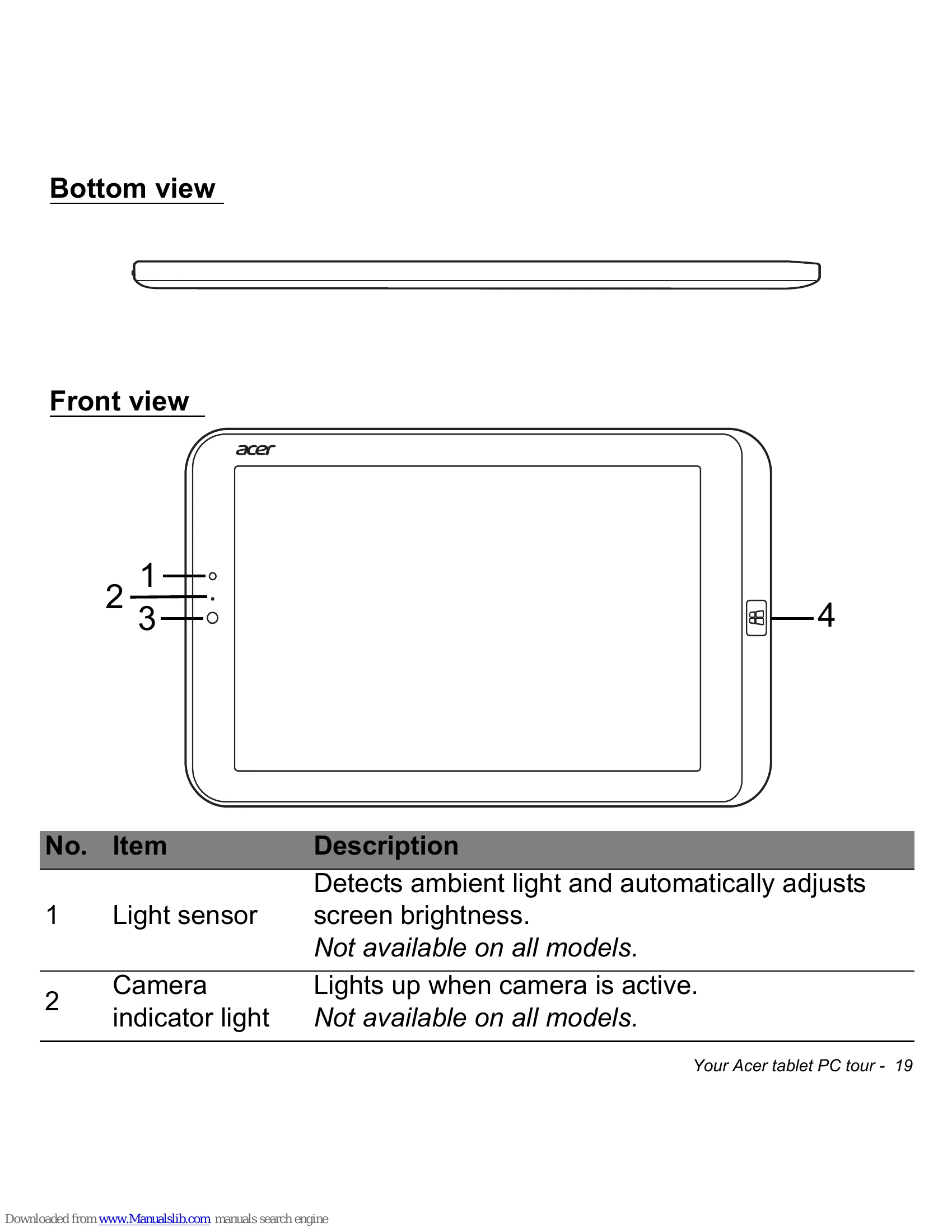
Tablet PC - Bottom view: (No details provided in this section).
Tablet PC - Front view: Includes Light sensor (adjusts screen brightness), Camera indicator light, Integrated webcam (2-megapixel for video communication), and Windows key (opens Start menu).
Tablet PC - Back view: Features a Camera (2-megapixel for high-resolution images) and Camera indicator light.
Tablet PC - Left/right views: Includes Power button (on/sleep/off), Micro USB connector (requires adapter for USB devices; power adapter recommended when using USB port), and other buttons/ports (numbered 4, 5, 6).